How To Remove Your Gmail From Websites And Unwanted Accounts (2026)
Tanya Mishra
Content Writer - ReVerb
06.26.2024
Have you ever found yourself in a situation when you can’t find an important email because of tons of other emails you don’t really need?
If this sounds familiar, stay with us. In this guide, we explain how to remove your Gmail address from unwanted websites forever so that you’re not overloaded with spammy content and your name can’t be found on some suspicious resources.
Before We Go Any Further — Why Did This Actually Happen?
You may be receiving unwanted emails for two reasons: you’ve either connected your Google account to third-party apps or just signed up for newsletters, promotional offers, or other types of email lists.
While both can result in too many unwanted email messages attacking your inbox, the first type of connection — connecting your Google account — can have more severe consequences.
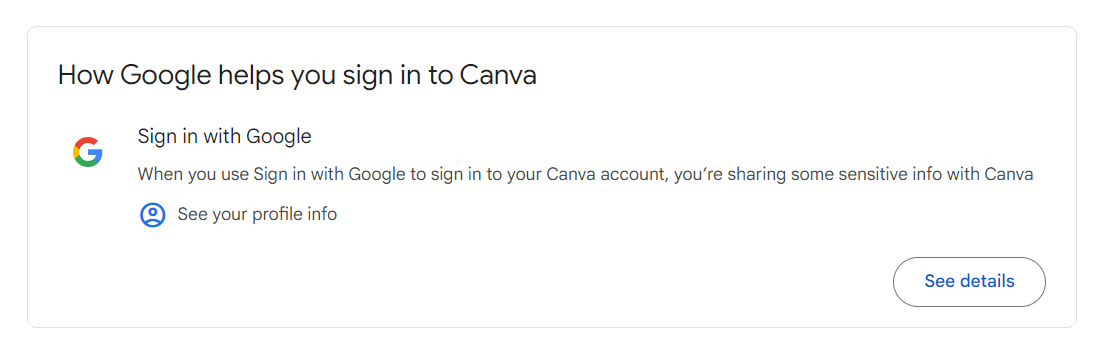
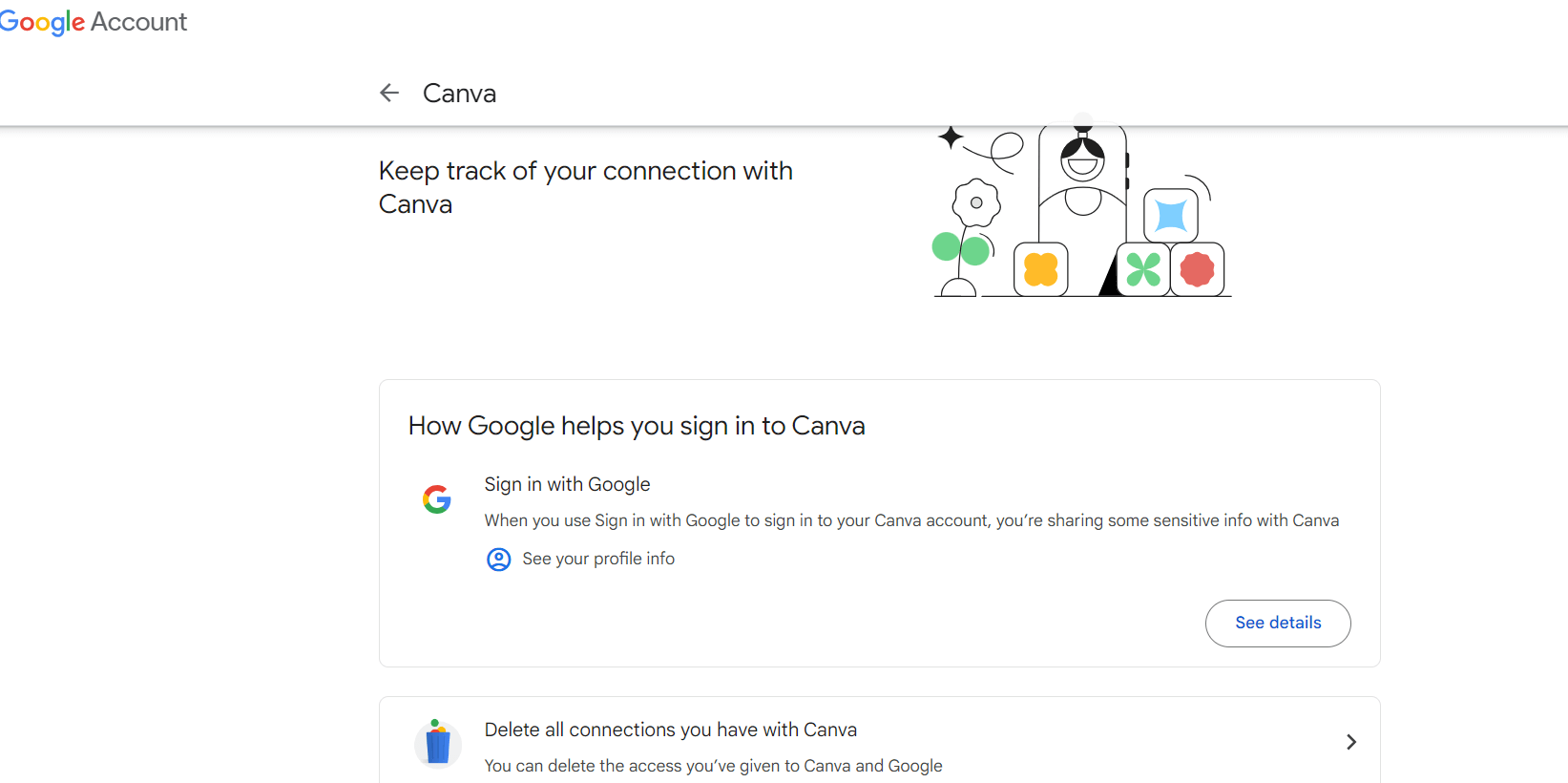
Connecting your Google account to third-party apps and services allows them to directly access your data. Just look:
Email subscriptions, on the other hand, don’t grant websites access to your sensitive information.
Long story short, let’s look at how you can remove connections of both types.
Find Every Site Linked To Your Gmail
Before you can remove your Gmail address from websites, you need a list of where it is being used. Most people have far more accounts than they remember, so work through these three sources.
Search Your Inbox For Sign-Up Emails
Almost every website sends an email when you create an account. In the Gmail search bar, try searches such as welcome, verify your email, confirm your account, activate your account and password reset. You can narrow results with Gmail’s search operators, for example subject:welcome or subject:verify. Note each sender as you go: every one is a site that still holds your address.
Check Your Saved Passwords
If you let Chrome or Android save your logins, Google Password Manager (passwords.google.com) holds a list of sites where you have an account. Scroll through it and flag any site you no longer use. Other password managers you use will have a similar list.
Review Apps Linked To Your Google Account
Sites where you clicked “Sign in with Google” do not always send a welcome email. Your Google Account keeps a list of these linked apps, which you can review and clean up using the steps below. Between these three lists, you will have a near complete picture of where your Gmail address is registered.
How To Remove Your Gmail Account From Unwanted Websites: A Quick Guide
Follow these simple steps to remove your Gmail account from unwanted services and apps:
Go to your Google account — https://myaccount.google.com/. If you aren’t signed in, enter your email address and password.
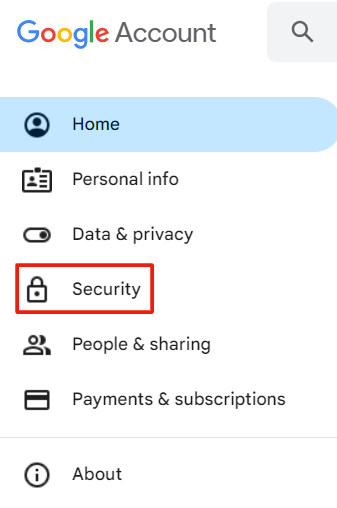
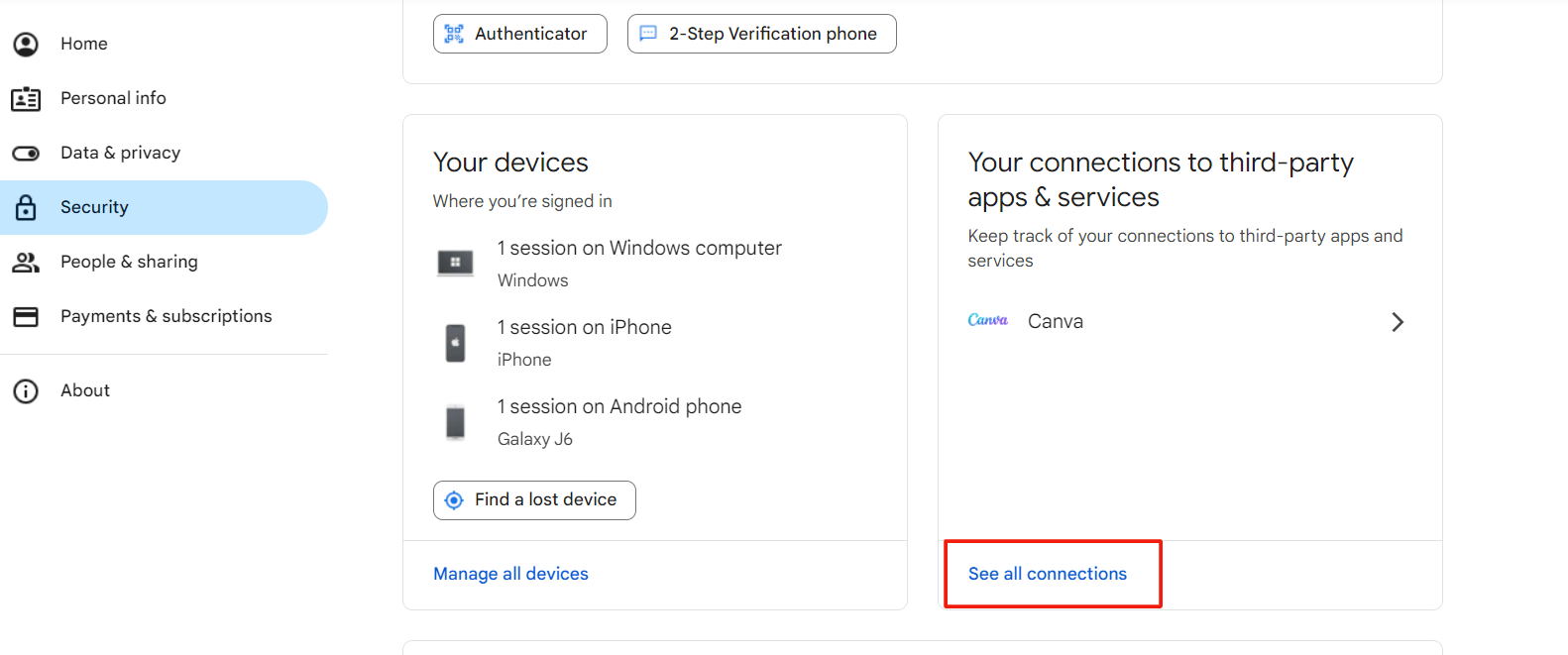
Find the “Security” tab in the left-hand sidebar:
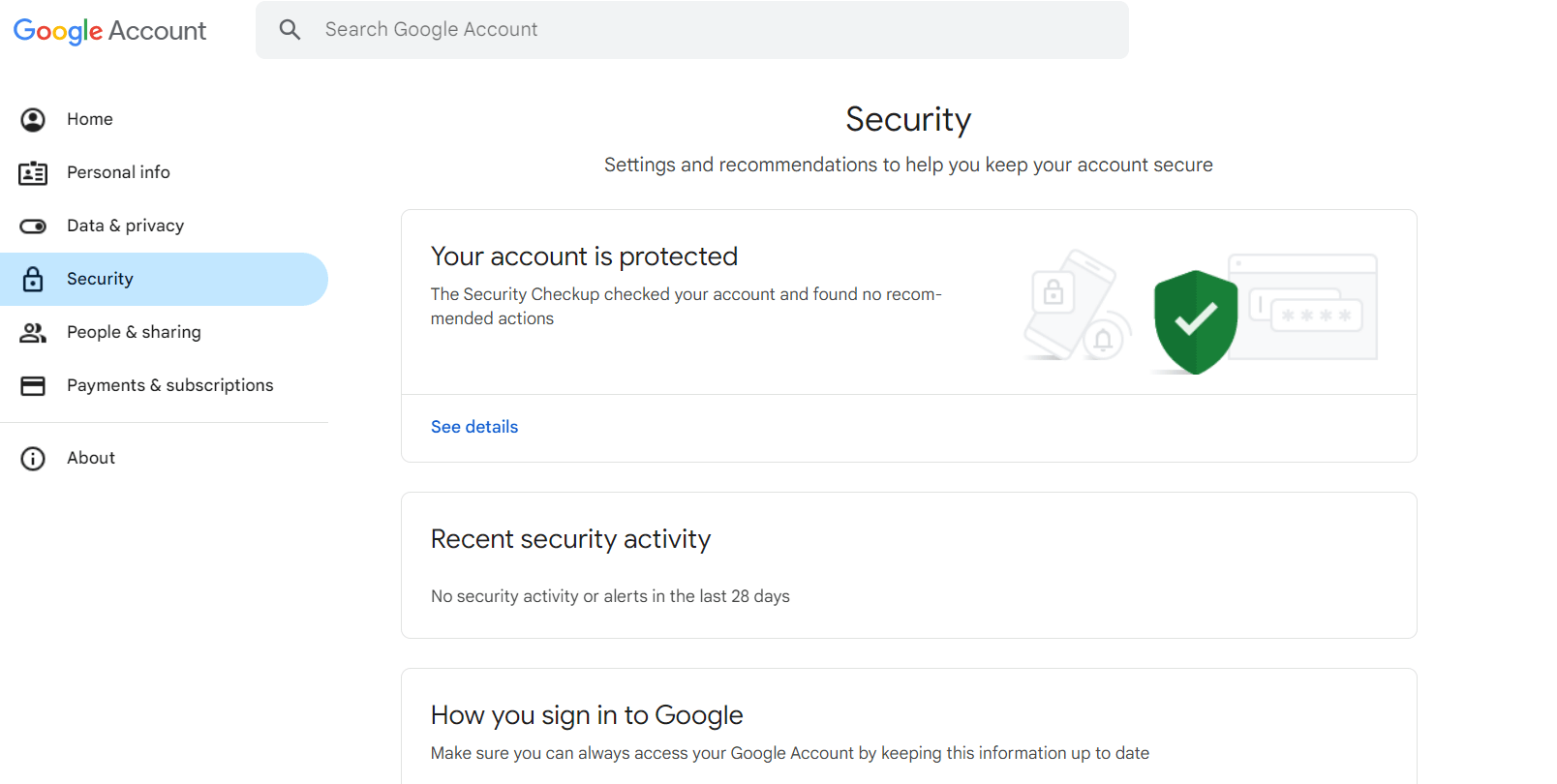
3. Click “Security” to access the security menu.
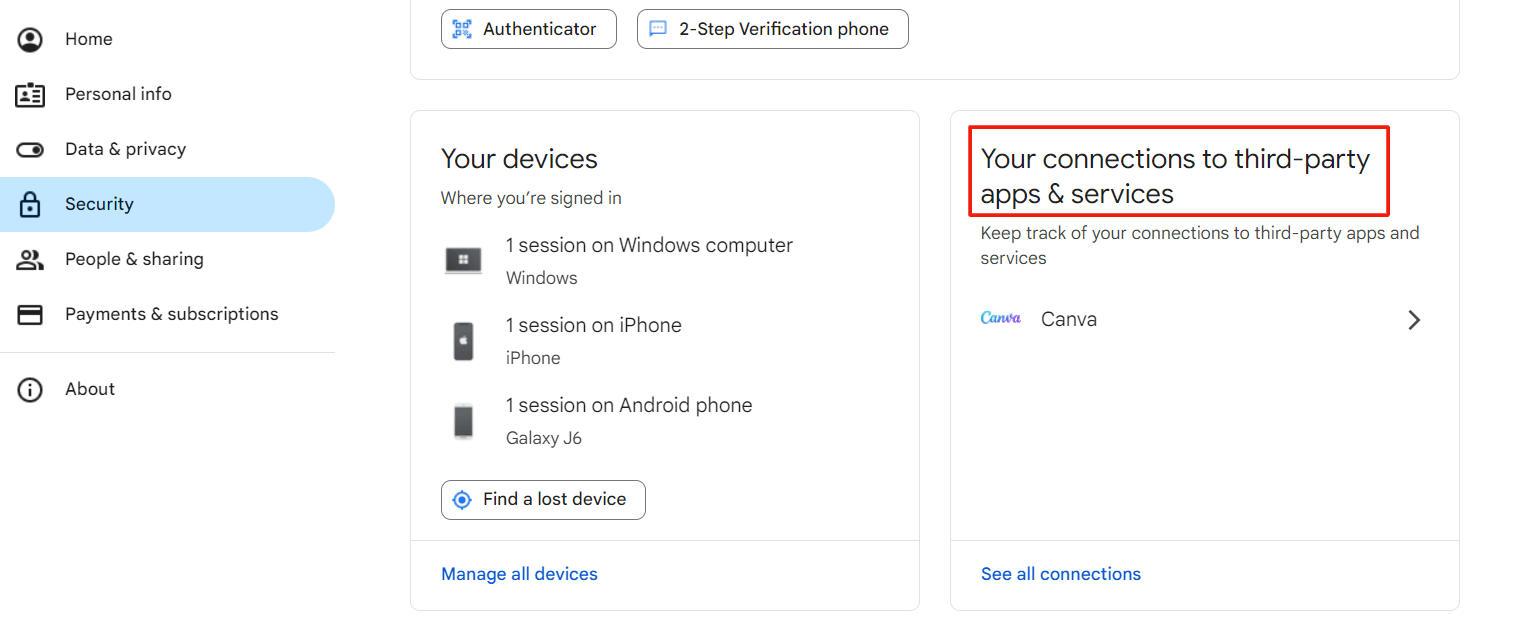
4. Scroll down to “Your connections to third-party apps & services.”
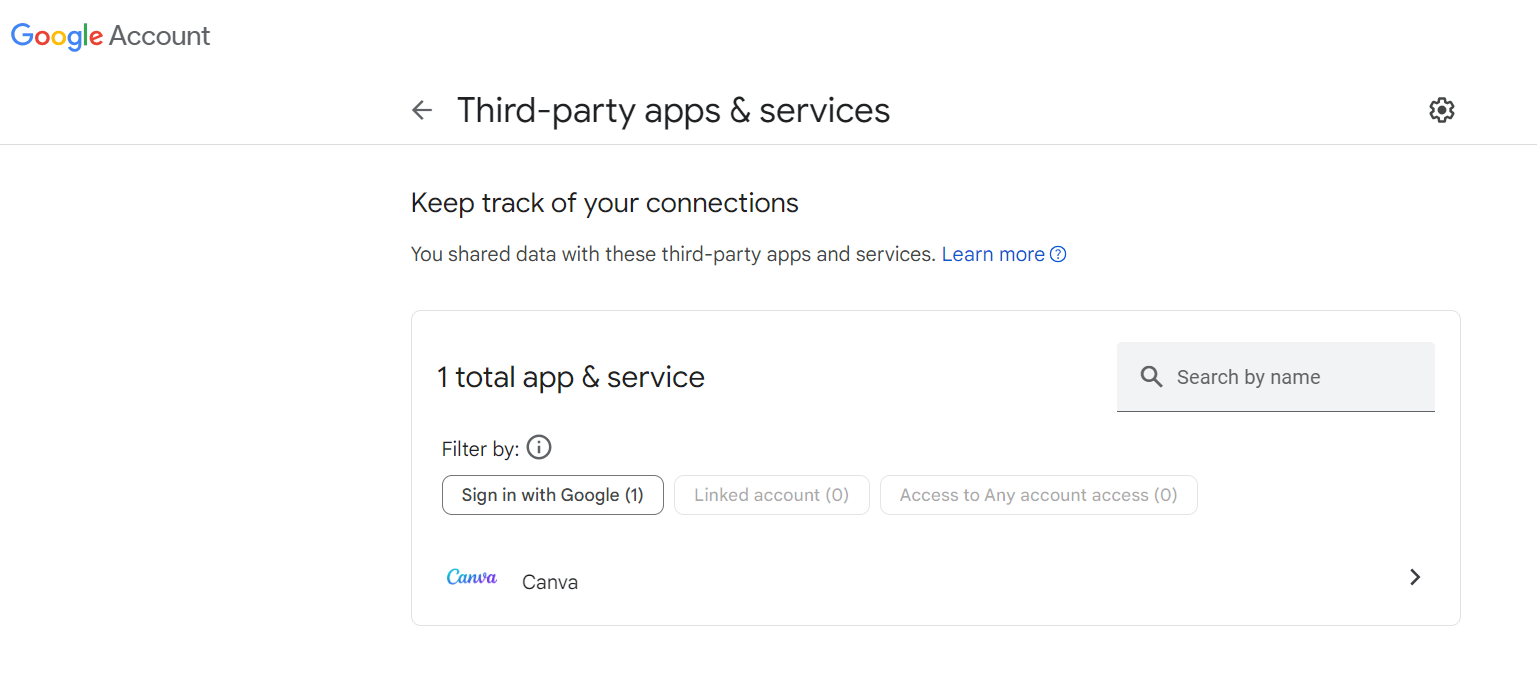
5. Click “See all connections.”
6. Now, you should see the list of apps or services connected to your Google account.
7. You can also use the “Search by name” option to remove a specific app or service.
8. Select an app or service by clicking on its name once. You should see the following menu:
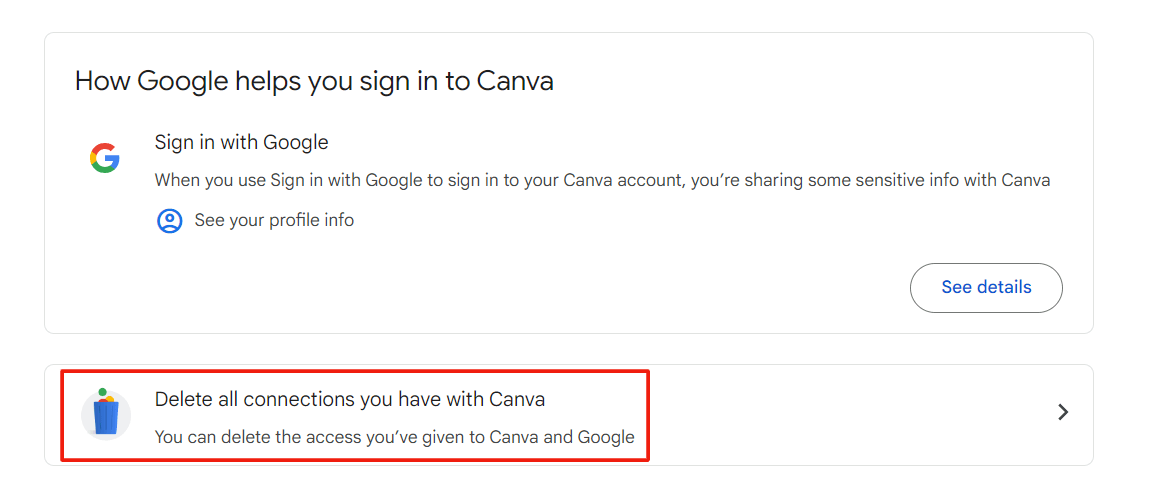
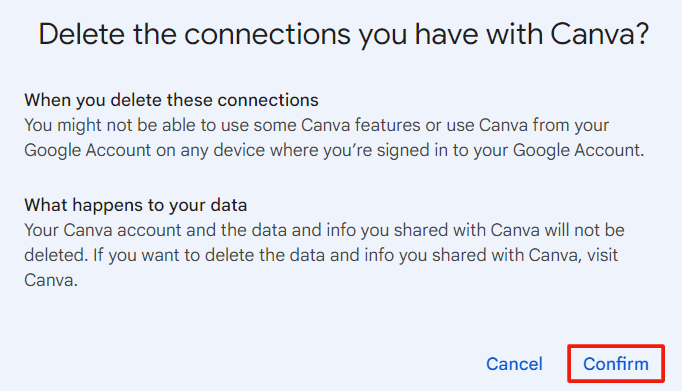
9. To remove an app or service from your connections, click “Delete all connections.”
10. Confirm your choice.
11. Repeat for each app or service you want to disconnect from your Google account.
How To Remove Linked Apps From Your Google Account, Step By Step
Google now groups third-party connections under a page called linked apps. The menu names below match Google’s current help documentation. Start by going to myaccount.google.com, opening the Security section and finding your connections to third-party apps and services, or go straight to myaccount.google.com/linkedapps.
To Stop Using Sign In With Google On A Site
Open your Google Account’s linked apps page.
Select Sign in with Google.
Select the app or website you want to review.
Select See details.
Select Stop using Sign in with Google, then Confirm.
To Remove An App’s Access To Your Google Account Data
Open your Google Account’s linked apps page.
Select Access to your Google Account.
Select the app you want to review, then See details.
Select Remove access, then Confirm.
To Delete A Linked Account
Open your Google Account’s linked apps page.
Select Linked account, then the app you want to remove.
Under “Google has some access to [app name],” select See details.
Select Delete link, then Confirm.
One important detail: removing the link does not delete your account on that website. Google stops automatic sign-in and the app loses access to your Google data, but the site keeps what it already has. To have that data erased, log in to the site and delete your account there, or contact the developer directly.
How To Remove Your Gmail Address From Mailing Lists
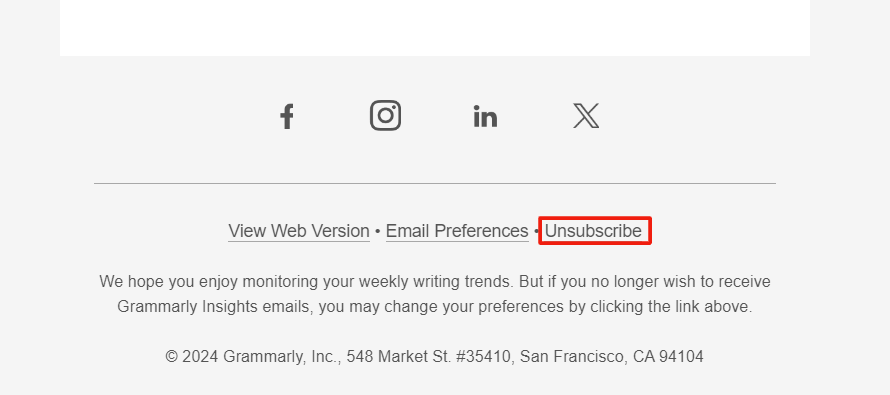
Removing your Gmail address from mailing lists can take a longer time, depending on the number of websites you’ve subscribed to. You need to open any email from a website you wish to unsubscribe from and find the word “Unsubscribe.”
It’s usually clearly visible — regulations like the CAN-SPAM Act in the US and the GDPR in the EU require companies to include an easy-to-find unsubscribe option in their marketing emails.
You can usually find the link you need at the bottom of an email, like in this email from Grammarly:
Or right beside the sender’s address, like in this email from Samsung:
But what if there’s no unsubscribe link? Here are some tips that might help you:
If it’s a message, you can reply, reply to the sender asking them to delete your email address from their list.
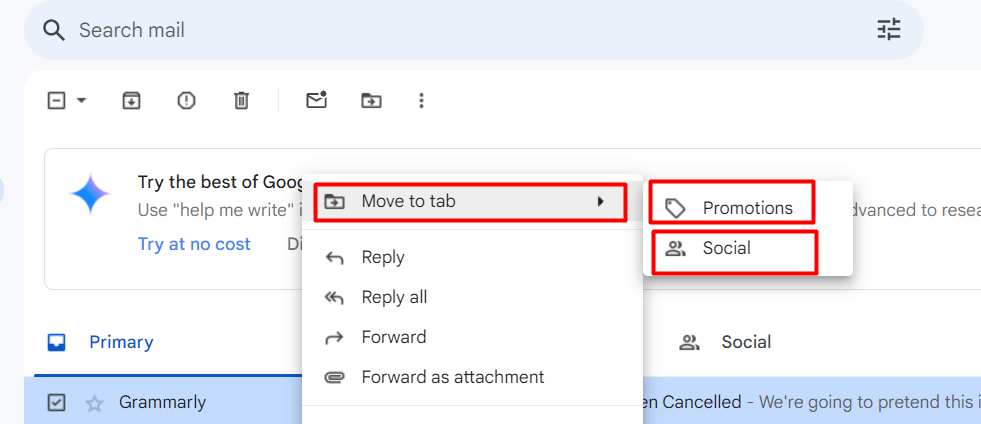
Redirect unwanted promotions to another email folder. For this, select any email message from the sender you don’t want to see in your primary email, and, using the menu (right-click when using a desktop or open the three-dot menu when using a tablet or phone), choose “Move to tab” and select “Promotions” or “Social.” In this case, you won’t stop getting emails from the websites but keep them away from your primary mailbox.
Block the sender. You can do this by clicking the three-dot menu on the top of an unwanted email and selecting “Block.” Use a third-party email filtering tool such as Block Sender.
You can also use a data removal service, like this, to automatically opt out of anything you’ve subscribed to, or even mailing lists you were added to without your consent or knowledge.
Frequently Asked Questions
Does Removing A Google Connection Delete My Account On That Website?
No. Removing the link stops Google from signing you in automatically and cuts off the app’s access to your Google Account, but it does not delete the account or data held by the website. You need to delete the account on the site itself or ask the developer to remove your data.
How Can I See Every Website That Uses My Gmail Address?
There is no single list. Combine three sources: the linked apps page in your Google Account, the saved passwords in Google Password Manager and a search of your inbox for words like “welcome” and “verify your email.”
Will I Still Get Emails From A Site After I Disconnect It?
Usually, yes. Disconnecting an app does not unsubscribe you from its mailing list. Use the unsubscribe link in its emails, or delete your account on the site so it no longer has a reason to contact you.
Can I Reconnect An App After Removing It?
Yes. If you sign in to the app with Google again, it will ask for permission and the link will be recreated. Review the access it requests before you approve it.
Conclusion
Now you know how to disconnect your Google account and Gmail address from unwanted third-party providers. While it’s pretty easy in most cases, this routine can take time.
And, let’s be honest, chances are that in several months, you’ll have to struggle with email subscriptions again — we all read news, shop online, etc., so that’s inevitable.
Lastly, here’s a proven tip that will prevent your account from being added to any unwanted websites during all your future online activities: have separate email addresses for important emails (work, financial services, utility providers, etc.) and online stores. This simple trick will protect your primary account against getting cluttered with unwanted messages.