How to Cancel Your Canva Subscription (Pro & Teams)
Yulia Kulik
Marketing Manager
06.15.2026
Canva makes it incredibly easy to upgrade to Pro, start a free trial, or join a Teams account. Canceling isn’t necessarily difficult, but many users end up looking in the wrong place and wondering why they can’t find the billing settings.
If you’ve found yourself asking, “How do I cancel my Canva subscription?” the answer largely depends on how you originally signed up. Some subscriptions are managed directly through Canva, while others are billed through Apple or Google Play.
The good news is that canceling a paid plan never deletes your account. In most cases, your account simply reverts to Canva’s free plan once your current billing cycle ends.
Cancel Canva Pro in a Few Steps
Here’s how to cancel Canva subscription billing:
Log into your Canva account.
Open Account Settings.
Select Billing & Plans.
Find your active subscription.
Choose Cancel Subscription and follow the confirmation prompts.
The exact steps may vary if you subscribed through Apple or Google Play rather than directly through Canva.
Subscription Type
Where You Need to Cancel
Canva Pro (direct through Canva)
Canva Billing & Plans
Canva Pro via Apple
Apple ID Subscriptions
Canva Pro via Google Play
Google Play Subscriptions
Canva Teams
Canva Team Billing Settings
The sections below walk through each method step by step.
How to Cancel Canva Pro on Desktop (Web Browser)
For most users, the desktop website is still the simplest way to manage subscriptions. The menus are easier to navigate, and you’re less likely to get bounced between different billing providers trying to figure out where the subscription is actually being managed.
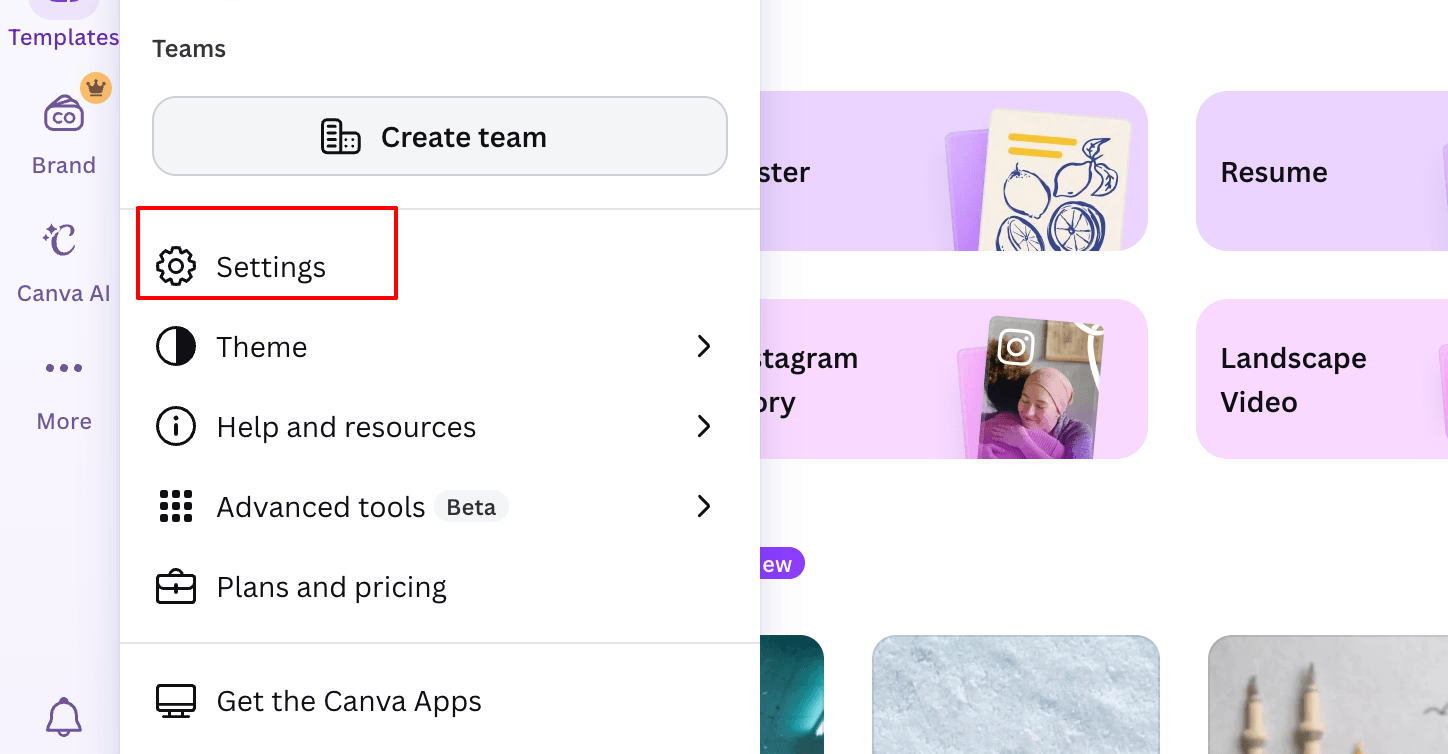
Click your profile picture in the bottom-left corner.
Select Settings.
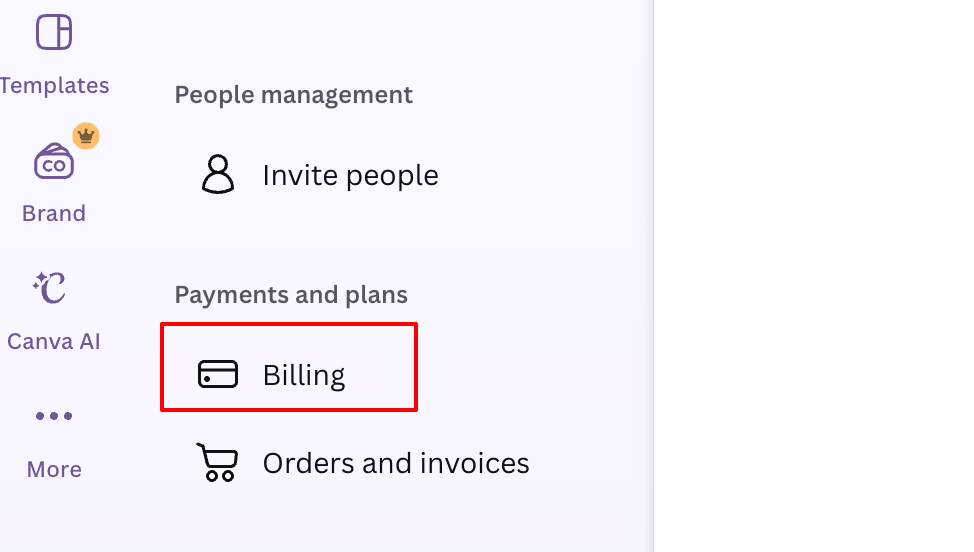
Open Billing.
Locate your active subscription.
Click Cancel Plan.
Follow the confirmation steps. Canva will ask you to continue, choose a reason, and confirm before the cancellation finalizes.
People who cancel a Canva Pro subscription are often surprised to learn that the website generally keeps Pro features active until the end of the current billing period rather than removing access immediately.
Canceling through Canva only works if Canva is the one handling your billing. If the subscription was purchased through Apple or Google Play, you’ll need to cancel through those platforms accordingly.
How to Cancel Canva Subscription on Your Phone
Many people manage their Canva account almost entirely from their phone, so canceling on mobile is one of the most common questions.
The right method depends on where you purchased the subscription to begin with. If you upgraded through Apple’s App Store, you’ll need to cancel through Apple. If you subscribed through Google Play, you’ll need to cancel through Google instead.
iOS (App Store / Apple ID)
If your Canva subscription is billed through Apple, you won’t find a cancellation option inside Canva itself.
To cancel:
Open Settings on your iPhone.
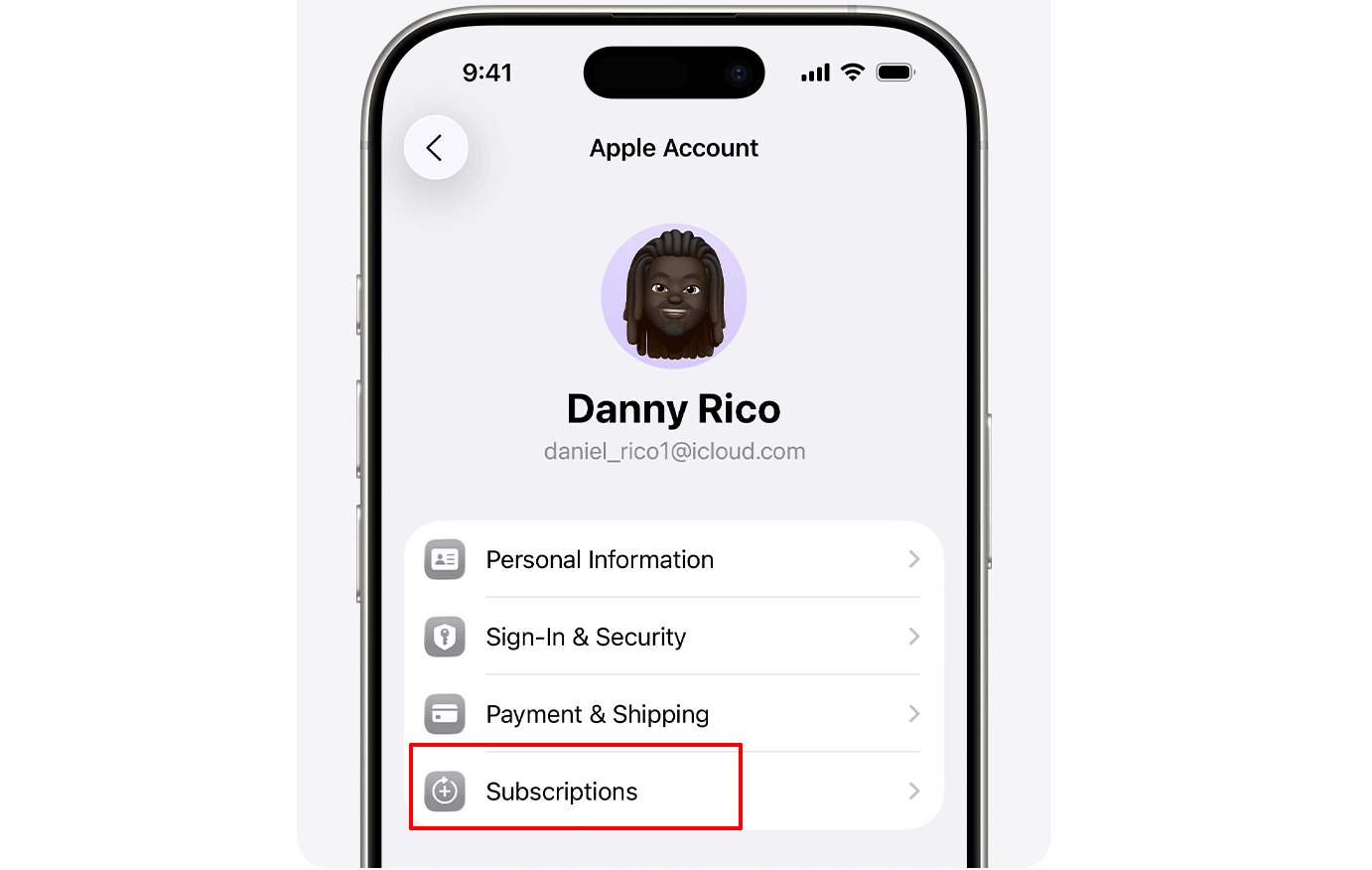
Tap your Apple ID at the top of the screen.
Select Subscriptions.
Find Canva in your list of active subscriptions.
Tap Cancel Subscription.
Follow the confirmation prompts.
This is where many users run into trouble. They try to complete a Canva cancel subscription request inside the Canva app, but Apple is actually handling the billing.
Android (Google Play)
Android users who bought a Canva subscription through Google Play need to cancel directly through Google’s subscription system.
To cancel:
Open the Google Play Store.
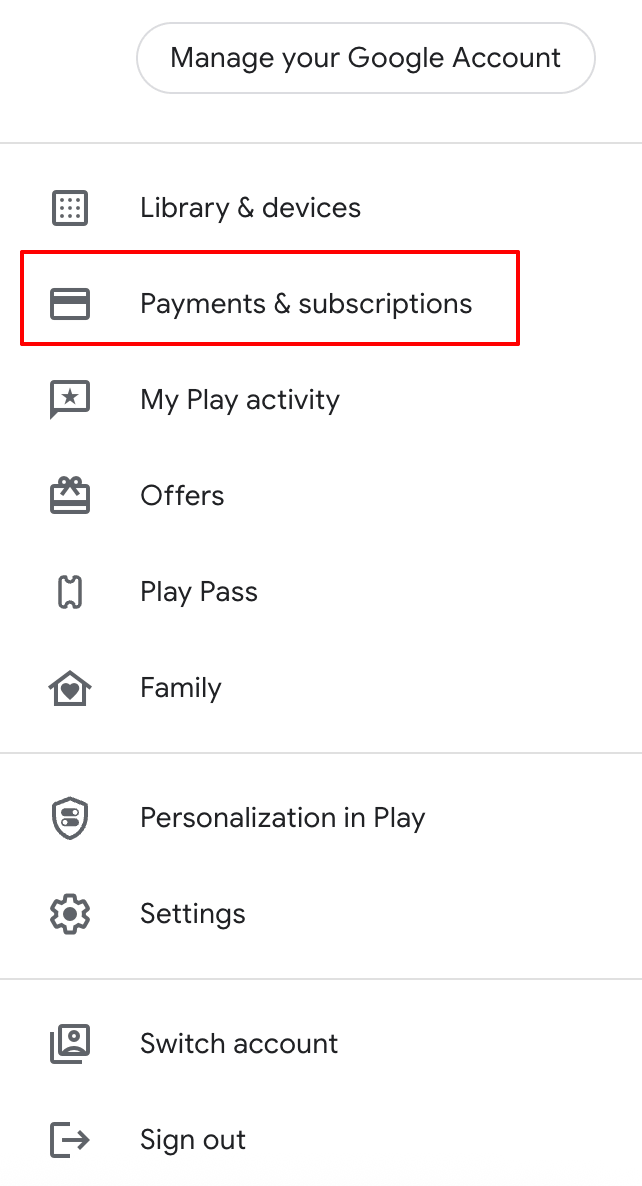
Tap your profile icon.
Select Payments & Subscriptions.
Choose Canva.
Select Cancel subscription.
Once the cancellation is confirmed, your Canva Pro features will typically remain active until the end of the billing period you’ve already paid for.
How to Cancel a Canva Teams Subscription
Teams subscriptions work a little differently because they often involve multiple users under the same account. Be aware that canceling Canva Teams is a permanent action. In the case of cancellation, resubscribing to Teams won’t be possible. If there’s a possibility that you will revisit Team planning in the future, it’s worth thinking about switching to Canva Business rather than canceling entirely.
If you’re trying to figure out how to cancel subscription on Canva for a Teams workspace, you’ll generally need administrator access. Team members usually can’t cancel billing unless they are the owner or administrator of the team.
To cancel a Teams subscription:
Log into Canva as the team owner.
Open Settings.
Select Billing & Plans.
Locate your Teams subscription.
Choose Cancel Subscription.
Follow the remaining prompts.
Before canceling, it’s usually worth reviewing how many people are using the workspace and reflecting on whether you will still need shared folders, brand kits, and collaboration features. Depending on your team’s needs, downgrading the team could make more sense than canceling the subscription entirely.
What Happens to Your Designs and Pro Assets After Canceling?
This is usually the question people care about most.
When someone hears they’re moving from Canva Pro back to Canva Free, they often assume years of work will suddenly disappear. Thankfully, that’s generally not how Canva handles cancellations.
After canceling:
Your account remains active
Your existing designs stay in your account
Shared projects remain accessible
You can still log in normally
Your subscription stays active until the billing period ends
What changes is access to Pro features.
For example, if you’ve used premium templates, stock photos, premium fonts, background remover tools, or other Pro-only features, you may lose the ability to edit certain elements after your subscription expires.
That doesn’t mean Canva deletes your projects. It simply means some premium assets may become restricted unless you reactivate Canva Pro later.
For businesses, freelancers, and content creators with a large library of designs, it can be helpful to review important projects before cancellation and export anything you may need in the future.
Refunds and the Canva Cancellation/Refund Policy
A lot of users assume that if they cancel immediately after being charged, they’ll automatically receive a refund. That’s not always the case.
Canva’s refund policies depend on your subscription type, how the subscription was purchased, local consumer protection laws, and whether you’re still within an eligible refund window.
If you purchased directly through Canva, refund requests typically need to be submitted through Canva support.
If you subscribed through Apple or Google Play, those companies usually handle refund requests themselves.
Anyone planning to cancel Canva subscription shortly after renewal should review Canva’s current refund policies before assuming a refund will be issued automatically. Either way, review the current refund eligibility guidelines before assuming a refund will be issued, especially if you’re requesting one shortly after a renewal charge.
Can’t Cancel? Where You Were Actually Billed (Canva vs Apple vs Google)
If you’ve clicked through every settings menu you can find and still don’t see a cancellation option, there’s a good chance you’re looking in the wrong place.
The most common reason people can’t cancel is that they’re searching inside Canva when another company is handling the billing.
Subscription Purchased Through
Cancel Here
Canva Website
Canva Billing & Plans
Apple App Store
Apple Subscriptions
Google Play
Google Play Subscriptions
If you’re not sure where you subscribed, check your recent credit card statements, Apple purchase history, Google Play purchase history, and Canva billing history. One of these will reveal which platform is processing the payments.
Absolutely. Switching back to Canva Free is usually enough for casual users, and it lets you keep working on existing projects without paying for a subscription you rarely use. If you do decide to switch back to Canva’s free subscription, please note that some features will no longer be available.
Can I pause my Canva subscription?
Not at the moment. Canva doesn’t currently offer a universal pause option that lets you temporarily stop billing and then resume where you left off later. If you don’t need Pro features right now, the closest alternative is usually to cancel your subscription and continue using Canva’s free plan.
Will I lose my designs?
No, the designs you’ve already created should still be sitting in your account when you log in.
However, some projects may contain premium templates or other Pro-only elements. Certain features become unavailable after the subscription expires, even though the design itself remains.
How do I get a refund?
Refund eligibility depends on how you subscribed. If you purchased directly through Canva, contact Canva Support. If the subscription was purchased through Apple or Google Play, you’ll usually need to request a refund through those platforms instead.
Conclusion
If you’re wondering how to cancel Canva subscription, the process is usually straightforward once you know who is handling the billing.
For some users, that’s Canva itself. For others, it’s Apple or Google Play. Once you’ve identified the correct billing provider, the cancellation process generally takes only a few minutes.
Most people who run into problems aren’t dealing with a complicated cancellation process. They’re simply trying to cancel through the wrong platform. If Canva doesn’t show a billing option, check whether Apple or Google Play is handling the subscription before spending too much time digging through settings.
The same principle applies to most other tools: figure out who’s actually billing you before you start hunting through settings. If ChatGPT is next on your list, our guide to canceling your ChatGPT subscription uses the same approach.